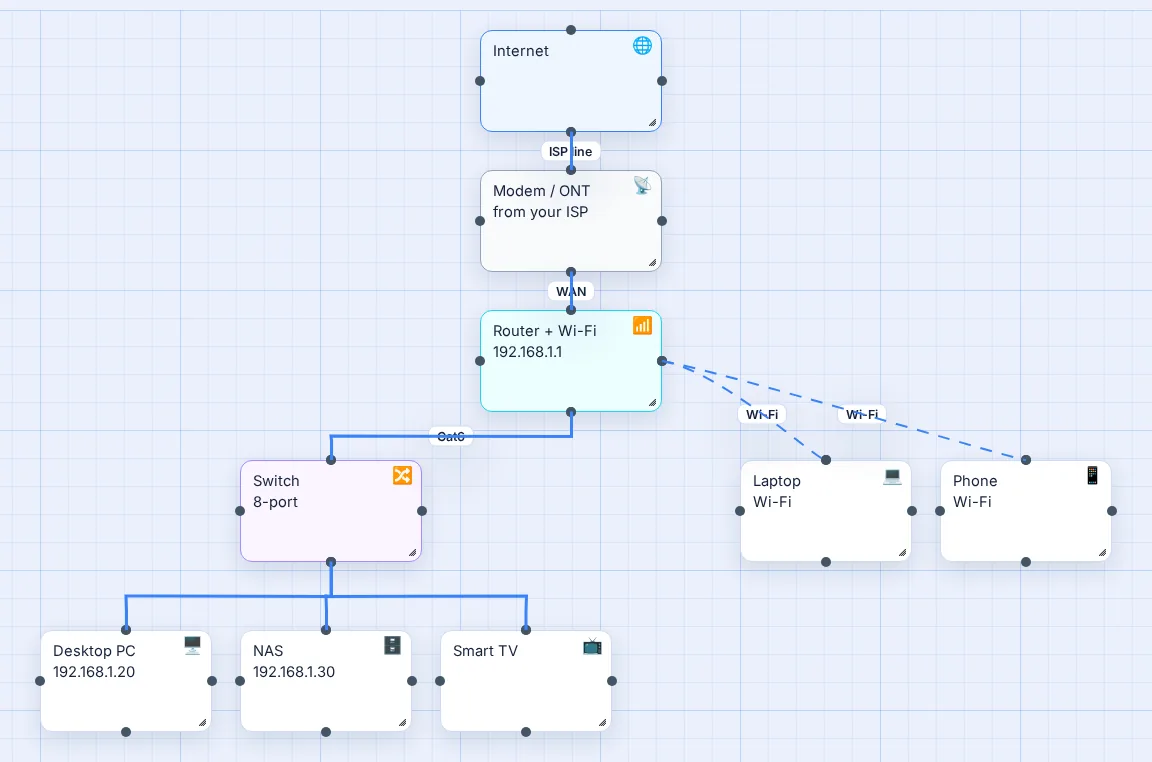
Why draw your home network at all?
Because the day something breaks is the worst day to work out how it was wired. A one-page diagram answers the questions that always come up: which box is the router and which is the modem, what plugs into the switch behind the TV, which IP address the printer has, and why the office is on a different Wi-Fi name. It's also the fastest way to explain your setup to your ISP's support line, a family member, or yourself in two years.
It helps when you're planning too. Adding a mesh system, a NAS, a second switch or a separate network for smart-home gadgets is far easier to think through on a diagram than in your head.
How to draw a home network diagram, step by step
- Start at the top with the internet. One box labelled Internet. Everything else hangs off this.
- Add the modem or ONT. This is the box from your ISP: a cable or DSL modem, or a fibre ONT. If your ISP gave you a combined modem-router, use one box and say so in the label.
- Add the router. Write its IP address in the box (often 192.168.1.1). If it broadcasts Wi-Fi, note the network names, for example Home and Home-Guest.
- Add switches and access points. Any switch, mesh node or Wi-Fi extender gets its own box under the router, with a line showing how it connects (cable, or wireless backhaul for mesh).
- Add every device. PCs, laptops, phones, consoles, TVs, printers, cameras, the NAS. Put each under whatever it connects to, and write its IP address if it has a fixed one.
- Label the lines. Ethernet or Wi-Fi, the cable type (Cat5e, Cat6, fibre), and the port number if you care which port is which.
- Tidy and export. Line things up, then export a PNG and keep it somewhere you'll find it, such as taped inside the network cupboard or saved next to your router password.
Common home network layouts
| Layout | What it looks like | How to draw it |
|---|---|---|
| Basic | ISP modem-router, everything on its Wi-Fi, maybe one PC by cable. | Three levels: internet, the router, devices. Dashed lines for Wi-Fi. |
| Router + switch | A separate router with a switch behind the desk or TV for wired gear. | Router in the middle, switch below it, wired devices hanging off the switch. |
| Mesh Wi-Fi | A main mesh unit plus satellites in other rooms. | One box per mesh node, with a line labelled wireless backhaul or wired backhaul, and devices grouped under the nearest node. |
| With a NAS or server | A NAS or home server for backups, media or smart-home software. | Put it under the switch, give it a fixed IP, and draw a dashed line to wherever it backs up to. |
| Separate guest / IoT network | Smart plugs, cameras and guests on their own Wi-Fi or VLAN. | Colour code: one colour per network, and note the subnet (for example 192.168.20.0/24) on the access point. |
Modem vs router vs switch: what each box does
The modem (or ONT on fibre) turns your ISP's line into a normal internet connection. It talks to your ISP and nothing else.
The router shares that connection with your home. It hands out IP addresses (DHCP), runs the firewall and usually provides Wi-Fi. Many ISPs give you a single box that is both modem and router.
The switch just adds more Ethernet ports. It doesn't hand out addresses or route anything; it extends the router's network to more wired devices.
An access point or mesh node extends Wi-Fi coverage. On the diagram it sits below the router, connected by a cable or by wireless backhaul.
Tips for a diagram people can actually read
- Top to bottom, internet first. Everyone reads it the same way: traffic comes in at the top and flows down.
- One colour per network. Main network in one colour, guest or IoT in another. In Vision Mapr, every box and line can take one of nine colours.
- Write facts on the boxes. IP address, model name, room. A diagram that says Switch, 8-port, office, 192.168.1.2 beats one that just says Switch.
- Keep secrets off it. Wi-Fi network names are fine; Wi-Fi passwords and router admin passwords don't belong on something you might print or share.
- Separate the physical from the logical when it grows. One map for where the cables actually run, another for networks and IP ranges. Vision Mapr keeps as many maps as you like.
Doing this for a home lab?
If you run a hypervisor, a firewall appliance and VLANs, start from the Home Lab template instead: internet, firewall, core switch with VLANs, servers, NAS, Wi-Fi AP and an offsite backup, all pre-wired with right-angle lines.
Questions people ask
What should a home network diagram include?
Your modem (or fibre ONT), router, any switches, mesh nodes or Wi-Fi access points, a NAS or home server if you have one, and every wired and wireless device. For each, note the IP address or range, the Wi-Fi network name it uses, the cable type and which router or switch port it plugs into.
Is there a free home network diagram tool with no signup?
Yes. Vision Mapr runs in your browser with no account: open the Home Network template, rename the boxes to match your gear, and export a PNG. You only need a free account if you want to save the diagram to the cloud or share a read-only link.
Do I need special network symbols?
No. Formal Cisco-style symbols matter in enterprise documentation, but for a home network a labelled box with a clear icon (router, switch, PC, NAS, phone) is easier for everyone in the house to read. Vision Mapr has device icons for exactly this.
How do I show Wi-Fi versus wired connections?
Use a different line style. A common convention is a solid line for Ethernet and a dashed line for Wi-Fi. In Vision Mapr, click any connection to change its line style and colour, and type a label such as Cat6 or 5 GHz on it.
Can Vision Mapr scan my network and draw it automatically?
No. Vision Mapr is a drawing tool, not network discovery software. It does not scan your network; you draw what you have. For most homes that takes ten minutes and gives a cleaner, more readable diagram than an auto-generated one.
Where do I find the IP addresses for my diagram?
Your router's admin page lists connected devices with their IP addresses, usually under DHCP clients or connected devices. Common router addresses are 192.168.0.1, 192.168.1.1 or 10.0.0.1. On a computer, the default gateway in your network settings is the router.